
Tools for competition gliders, modelists and enthusiasts
Updating from the original software
Before beginning the process, please take some time to read and understand these instructions.
If performed incorrectly, this could render your device inoperable; therefore, if you proceed, you do so at your own risk.
If you’re unsure whether your device can be updated, the answer is simple: if your model has Wi-Fi connectivity, then it can be updated to this new version.
From the download page, choose the files for your exact GliderCG model and download to your PC/laptop/tablet/phone to a known location and unzip it.
Each device needs two files:
-... _2026_1_4.ino.d1_mini.bin .bin
-... Filesystem 1M .bin
Use only the files that match your product model.
GliderCG Plus
For GliderCG Plus devices with two load cells and OLED display.
GliderCG F3K
For compact F3K devices with 128 x 32 OLED display.
GliderCG Std
For the standard GliderCG device, previously known as Standard V3.
GliderCG Scale / Landing Gear Ed.
For four-sensor Scale devices.
GliderCG Scale Mini
For four-sensor Scale Mini devices.
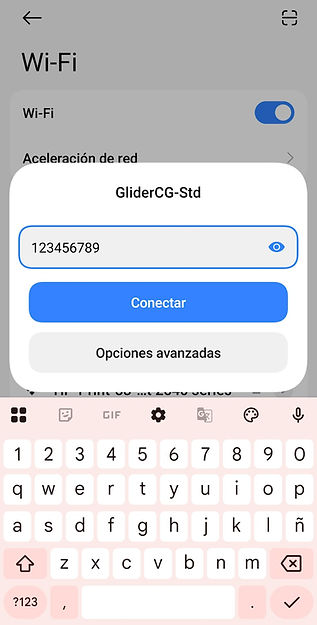
STEP 1. Connect to the device WiFi. Remember that each device's SSID has its own name: GliderCG-V3, GliderCG-Plus, GliderCG-F3K, etc.

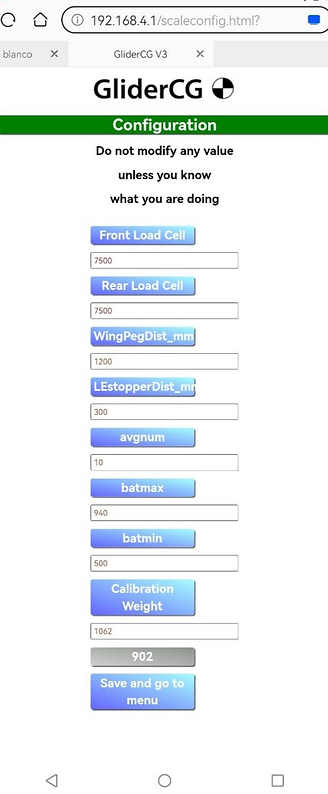
STEP 2. Open http://192.168.4.1/scaleconfig.html in your web browser and write down your calibration/configuration values. In addition to writing them down on paper, take some screenshots—they'll be helpful.
In some recent versions of popular browsers such as Chrome, etc., you may not be able to access this page. Try accessing it using your phone's built-in browser, Firefox, or any other browser until you can view the page with the coefficients.


On the the “Firmware” section, click "select file" button, locate the files you downloaded, and select the update file whose name contains “- _2026_1_4.ino.d1_mini.bin” from the two downloaded files. Then click "Update Firmware" Button.
Do not upload the filesystem file as firmware. Firmware and filesystem are two different files and both are required.
STEP 4. Wait for the device to restart.
STEP 5. Reconnect to the device WiFi.
UPDATE FILESYSTEM
STEP 6. Open http://192.168.4.1/FS_update

Click "select file" button, locate the files you downloaded, and select the update file whose name contains "-... Filesystem 1M .bin" from the two downloaded files. Then click "Update FileSystem" Button.
STEP 7. Wait for the device to restart.
In the devices with oled screen, you will see "Updating" on it:

STEP 8. Reconnect to the device WiFi.
STEP 9. Reopen http://192.168.4.1/scaleconfig
When entering the old calibration coefficients, you will notice that there are new fields that did not exist before. Leave them as they are, since these are new coefficients and constants required for the device's new features.
Overwrite the other existing values with the values you wrote down earlier.
Old configuration Page
New configuration Page


Write down all the calibration values you take in step 2 and press "save". Then turn down the device.
From this point on, you can turn on the device and enjoy the new version.